


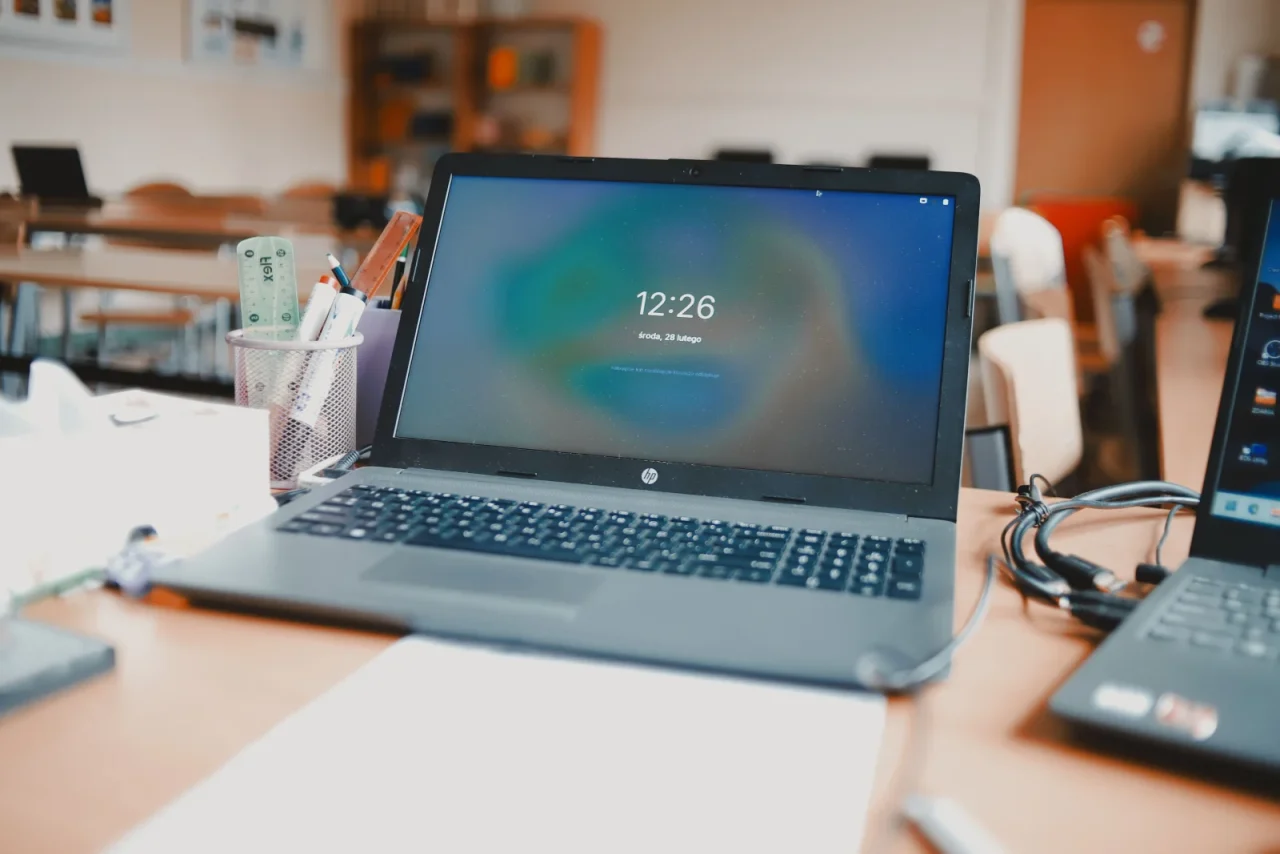
Before you spend £600 on a replacement, it is worth ten minutes finding out whether the old one is genuinely past it. In our workshop, a laptop brought in as “dead slow, must be broken” is very often none of those things.
1. Restart it properly
Closing the lid is not restarting. Many laptops go weeks between actual restarts, and Windows accumulates. Choose Restart, not Shut Down (on Windows, Shut Down does not fully clear everything by default). It is a cliche because it works.
2. Check what launches at startup
Press Ctrl+Shift+Esc, open the Startup tab, and look at what has quietly appointed itself to load every time you switch on. Music players, updaters, chat apps, printer software. Disable anything you do not need immediately at boot — you can still open it normally.
3. Look at your free disk space
A drive that is nearly full slows a machine down badly, because the operating system needs working space. If you are below about 10% free, that is very likely your problem. Empty the recycle bin, run Storage Sense, and move photos and videos to an external drive or the cloud.
4. Count your browser tabs and extensions
Each tab uses memory. Forty open tabs on a machine with 8GB of RAM will feel exactly like a broken computer. So will six browser extensions you installed once and forgot. Both are free to fix.
5. Update Windows — and then leave it alone for an hour
A machine mid-update is a slow machine. Let it finish, restart, and then judge it.
6. Check the temperature and the fan
If the underside is hot and the fan is roaring, the laptop may be throttling itself to avoid overheating. Years of dust in the vents is the usual cause. On many machines this is a genuinely dramatic fix — a proper internal clean can transform performance.
7. Scan for malware
Windows Security is perfectly good. Run a full scan, not a quick one, and let it finish.
8. Consider an SSD upgrade
This is the big one. If your laptop still has a mechanical hard drive — anything bought before roughly 2017, and plenty of budget machines after that — swapping it for an SSD is the single most effective upgrade there is. Boot times drop from minutes to seconds. It typically costs a fraction of a new laptop, and machines people had written off routinely come back to life.
When it really is time to replace it
Be honest with yourself if the machine is more than about seven years old, cannot run a supported version of Windows, has 4GB of RAM, or has a failing battery and a failing drive and a cracked hinge. At that point you are restoring, not repairing.
If you are not sure which camp you are in, bring it to us. We will tell you honestly — including when the honest answer is that it is not worth the money.
Not sure if it is worth fixing?
Bring it into our Radstock repair centre and we will tell you honestly — including when the honest answer is to replace it. Most repairs turned around in three days.
Apollo Technology, 1–2 Ludlow Court, Frome Road, Radstock, BA3 3FX. Open weekdays 8.30am–5pm. Call 01761 347198.